
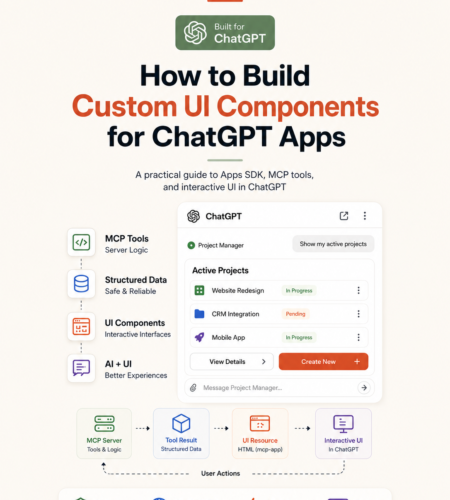
ChatGPT apps do not have to stop at text responses.
With an MCP server and a custom UI resource, an app can display interactive cards, lists, buttons, forms, selectors, maps, confirmations, dashboards, and other interfaces directly alongside a ChatGPT conversation.
If you are searching for ChatGPT Apps SDK custom UI components, there is one important terminology change to understand first.
As of 2026, OpenAI’s current developer documentation organizes this functionality under Plugins, while older Apps SDK documentation URLs redirect to the newer documentation. For new interfaces, OpenAI recommends building on the open MCP Apps standard, with window.openai used primarily for optional ChatGPT-specific capabilities.
The core architecture is still straightforward:
User → ChatGPT → MCP Tool → Structured Data → UI Resource → Interactive Component
This guide explains how that architecture works and how to build it correctly.
What Are ChatGPT Apps SDK Custom UI Components?
ChatGPT custom UI components are web interfaces returned by selected MCP tools and rendered inside an isolated iframe within ChatGPT.
The MCP server handles tools, business logic, authentication, and authoritative data. The UI component handles presentation and user interaction.
For new applications, the component is associated with a tool using:
_meta.ui.resourceUri
The component can then receive tool results through the MCP Apps bridge and interact with tools when the user performs an action.
Quick answer
A modern ChatGPT custom UI typically works like this:
- ChatGPT calls an MCP tool.
- The MCP server processes the request.
- The tool returns structured data.
- A render tool points to a UI resource.
- ChatGPT loads that resource inside an iframe.
- The component receives the tool result.
- The user can interact with the component.
- The component can call additional MCP tools when necessary.
That separation between AI reasoning, server-side operations, and presentation is one of the most important concepts to understand.
Apps SDK vs Plugins vs MCP Apps: What Changed?
The terminology can be confusing because many tutorials and search results still refer to the OpenAI Apps SDK or ChatGPT Apps SDK.
OpenAI’s current documentation now presents this architecture under Plugins and recommends a standards-first approach based on MCP Apps.
For example, OpenAI currently recommends:
| Purpose | Recommended MCP Apps approach | ChatGPT compatibility API |
|---|---|---|
| Connect a tool to UI | _meta.ui.resourceUri | _meta["openai/outputTemplate"] |
| Receive tool input | ui/notifications/tool-input | window.openai.toolInput |
| Receive tool results | ui/notifications/tool-result | window.openai.toolOutput |
| Call a tool | tools/call | window.openai.callTool |
| Send a message | ui/message | window.openai.sendFollowUpMessage |
The older compatibility methods still exist, but OpenAI recommends the shared MCP Apps methods when an equivalent exists.
What should you use in a new project?
For new development:
Build the portable functionality with MCP Apps first.
Then use window.openai only when you specifically need functionality provided by ChatGPT, such as certain file-handling, modal, checkout, or widget-state features.
This makes your architecture less dependent on one host implementation.
How the ChatGPT Custom UI Architecture Works
There are three major layers.
1. MCP Server
Your MCP server exposes controlled tools to ChatGPT.
A tool might:
- search products
- retrieve customer information
- calculate a quote
- update a project
- check availability
- retrieve analytics
- create a support ticket
OpenAI recommends designing focused tools around recognizable user goals rather than creating one huge tool responsible for unrelated operations. Tool definitions should include clear names, descriptions, schemas, and appropriate safety annotations.
2. Structured Tool Result
Instead of returning only natural-language text, your MCP tool can return structured data.
For example:
{
  "projects": [
    {
      "id": "p1",
      "name": "Website Redesign",
      "status": "active"
    },
    {
      "id": "p2",
      "name": "CRM Integration",
      "status": "pending"
    }
  ]
}
That data is much easier for an interface to turn into cards, tables, selectors, or other visual components.
The UI should treat incoming structured content as untrusted data and validate or safely render it.
3. UI Resource
The UI itself is exposed by your MCP server as a resource.
A typical resource URI might look like:
ui://project-board/v1.html
For MCP Apps UI, OpenAI documents the MIME type:
text/html;profile=mcp-app
The tool that should display the component references that UI resource.
ChatGPT can then render the component inside an iframe next to the conversation.
Step 1: Build the MCP Tool First
Do not begin with React.
Start with the actual capability your application needs.
Suppose we want ChatGPT to retrieve projects from a project-management system.
A simplified TypeScript MCP tool might look like this:
import { McpServer } from "@modelcontextprotocol/sdk/server/mcp.js";
import { z } from "zod";

const server = new McpServer({
  name: "project-manager",
  version: "1.0.0",
});

server.registerTool(
  "list_projects",
  {
    title: "List projects",
    description: "Return projects available in the user's workspace.",

    inputSchema: {
      status: z.enum(["active", "pending", "completed"]).optional(),
    },

    outputSchema: {
      projects: z.array(
        z.object({
          id: z.string(),
          name: z.string(),
          status: z.string(),
        })
      ),
    },
  },

  async ({ status }) => {
    const projects = await getProjects(status);

    return {
      structuredContent: {
        projects,
      },

      content: [
        {
          type: "text",
          text: `Found ${projects.length} projects.`,
        },
      ],
    };
  }
);
The important point is not the exact project example.
It is the architecture:
The tool performs the work. The UI displays the result.
Your core workflow should remain useful even when custom UI is unavailable. OpenAI explicitly recommends keeping MCP tools functional without a component.
Step 2: Register a Custom UI Resource
Now create the interface ChatGPT can render.
A simplified resource could look like this:
const PROJECT_UI = "ui://projects/v1.html";

const widgetHtml = `
  <div id="projects"></div>

  <script type="module">
    const root = document.getElementById("projects");

    function render(data) {
      const projects = data?.projects ?? [];

      root.innerHTML = projects
        .map(project => \`
          <article>
            <strong>\${project.name}</strong>
            <span>\${project.status}</span>
          </article>
        \`)
        .join("");
    }

    window.addEventListener("message", (event) => {
      if (event.source !== window.parent) return;

      const message = event.data;

      if (!message || message.jsonrpc !== "2.0") return;

      if (message.method === "ui/notifications/tool-result") {
        render(message.params?.structuredContent);
      }
    });
  </script>
`;

server.registerResource(
  "project-list",
  PROJECT_UI,
  {},
  async () => ({
    contents: [
      {
        uri: PROJECT_UI,
        mimeType: "text/html;profile=mcp-app",
        text: widgetHtml,
        _meta: {
          ui: {
            prefersBorder: true,
          },
        },
      },
    ],
  })
);
The component listens for the latest tool result and renders the structured data.
In a real production application, I would normally separate the component source from the MCP server rather than embedding a large frontend directly into a string.
OpenAI also recommends separating component code and server logic for production applications.
Step 3: Connect a Tool to the UI
A component does not automatically appear just because the resource exists.
The rendering tool needs to reference it.
For new MCP Apps implementations, use:
_meta: {
  ui: {
    resourceUri: PROJECT_UI
  }
}
For example:
server.registerTool(
  "render_project_list",
  {
    title: "Render project list",

    description:
      "Display project data in an interactive project list.",

    inputSchema: {
      projects: z.array(
        z.object({
          id: z.string(),
          name: z.string(),
          status: z.string(),
        })
      ),
    },

    _meta: {
      ui: {
        resourceUri: PROJECT_UI,
      },
    },
  },

  async ({ projects }) => ({
    structuredContent: {
      projects,
    },

    content: [
      {
        type: "text",
        text: `Displaying ${projects.length} projects.`,
      },
    ],
  })
);
That resourceUri is the connection between the MCP tool and the interface.
OpenAI still supports the older:
_meta["openai/outputTemplate"]
as a ChatGPT compatibility alias, but _meta.ui.resourceUri is the recommended shared field for new UI.
Step 4: Let the UI Call MCP Tools
Custom UI becomes much more useful when it is interactive.
Imagine each project card has a button:
View details
When the user clicks it, the component should not duplicate your backend logic in JavaScript.
Instead, it can call another MCP tool.
The MCP Apps bridge exposes:
tools/call
A request follows the JSON-RPC interaction between the iframe and its host.
Conceptually:
const result = await request("tools/call", {
  name: "get_project",
  arguments: {
    project_id: "p1"
  }
});
The MCP server remains responsible for authorization, validation, business rules, and authoritative data.
The frontend simply asks the tool to perform the operation.
That separation is particularly important for applications involving customer data, payments, internal systems, or any workflow where permissions matter.
Do Not Attach UI to Every Tool
This is one of the most useful architectural recommendations in OpenAI’s current documentation.
You might initially create:
search_projects → UI
get_project → UI
filter_projects → UI
update_project → UI
But every tool result can cause another iframe render.
A cleaner pattern is:
search_projects
      ↓
structured data
      ↓
AI reasoning/filtering
      ↓
render_project_list
      ↓
custom UI
OpenAI recommends separating data-processing tools from render tools when appropriate.
Data tools fetch or modify information.
Render tools take the final information and display it.
Only the render tool needs the UI resource.
This approach has several advantages:
- fewer unnecessary UI remounts
- reusable MCP tools
- cleaner business logic
- better conversational reasoning
- easier maintenance
- simpler UI components
What Can You Build With ChatGPT Custom UI?
OpenAI currently documents several presentation patterns.
Inline cards
Best when the user needs:
- one result
- a confirmation
- a few actions
- a compact summary
Example:
Order #1248
Status: Ready to ship

[View details] [Contact support]
Carousels
Useful when the user needs to compare a small number of similar items.
Examples:
- products
- hotels
- properties
- service packages
- recommendations
Fullscreen interfaces
Useful when the task requires significantly more working space.
Examples:
- dashboards
- maps
- editors
- complex browsing
- data exploration
Picture-in-picture
Useful for an activity that should remain visible while the conversation continues.
Examples include live sessions, video, or other ongoing interactive experiences.
OpenAI recommends beginning with the smallest presentation that can successfully support the workflow rather than making every interface fullscreen.
Using the OpenAI Apps SDK UI Component Library
You do not necessarily need to design every button, card, field, and layout primitive yourself.
OpenAI provides the optional:
@openai/apps-sdk-ui
component library.
It includes ready-made UI primitives designed to visually fit inside ChatGPT, including elements such as:
- buttons
- cards
- input controls
- layout primitives
OpenAI describes it as optional, so using the library is not required for creating MCP Apps UI.
For teams building several interfaces, however, using standardized components can reduce the amount of design-system work required.
How Should State Work?
A ChatGPT UI can involve several different kinds of state.
Do not treat them as the same thing.
| State | Where it should live | Example |
|---|---|---|
| Business data | MCP server/database | Orders, projects, documents |
| Temporary UI state | Component | Selected card, open tab, sort order |
| Durable user state | Your backend | Saved preferences, filters |
| Model-visible UI context | MCP Apps bridge | Current selection the model needs to understand |
OpenAI specifically recommends keeping authoritative business data on the server.
A component should not become the source of truth for important data simply because it currently displays it.
For example:
User clicks "Approve"
        ↓
UI calls approve_request
        ↓
MCP server checks permission
        ↓
Database is updated
        ↓
Server returns new state
        ↓
UI renders approved state
That is much safer than changing the UI to “Approved” and assuming the backend succeeded.
window.openai: Should You Still Use It?
Yes — but selectively.
Current OpenAI guidance is to use the shared MCP Apps mechanism when it covers the capability you need.
window.openai remains useful for ChatGPT-specific extensions.
Examples documented by OpenAI include capabilities involving:
- file upload
- selecting uploaded files
- temporary file download URLs
- host-controlled modals
- widget-state persistence
- checkout-related functionality
Feature-detect these capabilities rather than assuming every host provides them.
For example:
const openai =
  typeof window !== "undefined"
    ? window.openai
    : undefined;

if (openai?.requestModal) {
  await openai.requestModal({
    // modal configuration
  });
} else {
  // fallback
}
The important principle is:
Build the common workflow on the standard. Add host-specific enhancements only when you need them.
Common ChatGPT Apps SDK UI Mistakes
1. Building the frontend before designing the tools
Your MCP tools define what the application can actually do.
Design those capabilities first.
2. Putting business logic inside the UI
The component should not become a second backend.
Authorization, validation, and authoritative updates belong on your server.
3. Rendering UI after every tool call
Use data tools for processing and a dedicated render tool when appropriate.
This reduces unnecessary iframe rendering.
4. Building only for window.openai
Older Apps SDK examples frequently center everything around window.openai.
For new applications, prefer MCP Apps standard methods where equivalents exist.
5. Treating structuredContent as trusted
Tool or external data should be validated and safely rendered.
OpenAI’s current React guidance explicitly advises treating received structured content as untrusted input.
6. Storing important data in widget state
Widget state is useful for interface state.
It should not replace your database.
OpenAI distinguishes temporary UI state from long-lived business data and durable server-side state.
7. Ignoring Content Security Policy
If your UI connects to external APIs or loads external resources, declare only the domains it actually requires.
Current OpenAI documentation distinguishes:
connectDomainsresourceDomainsframeDomains
and recommends keeping these allowlists narrow.
When Does a Business Actually Need Custom ChatGPT UI?
Not every AI integration needs a custom interface.
If ChatGPT can complete the entire task cleanly through conversation, plain MCP tools may be enough.
Custom UI becomes more valuable when users need to:
Compare
Examples:
- products
- properties
- plans
- candidates
- quotations
Inspect
Examples:
- analytics
- documents
- orders
- reports
- records
Edit
Examples:
- task boards
- structured forms
- configurations
- schedules
Confirm
Examples:
- purchases
- bookings
- approvals
- important account actions
Navigate structured information
Examples:
- catalogs
- dashboards
- search results
- datasets
OpenAI itself recommends custom UI when people need to inspect, compare, edit, confirm, or navigate structured information.
That gives businesses a useful decision rule:
Do not add custom UI because it looks impressive. Add it when conversation alone creates friction.
A Practical Architecture for Production
For a real application, I would structure the system roughly like this:
User
  ↓
ChatGPT
  ↓
MCP Server
  ├── search_projects
  ├── get_project
  ├── update_project
  └── render_project_list
          ↓
       UI Resource
          ↓
   React / HTML Component
          ↓
 User interactions
          ↓
      MCP tools
          ↓
 Database / APIs
And keep the codebase separated:
chatgpt-plugin/
│
├── server/
│   ├── tools/
│   ├── services/
│   ├── auth/
│   └── server.ts
│
└── web/
    ├── src/
    │   └── component.tsx
    ├── package.json
    └── dist/
        └── component.js
OpenAI’s current documentation recommends a similar separation between the MCP server and component bundle.
ChatGPT Apps SDK Custom UI Components: Key Takeaways
If you remember only five things, remember these:
- Build your MCP tools before building the interface.
- Use
_meta.ui.resourceUrifor new MCP Apps UI. - Pass UI-friendly data through
structuredContent. - Separate data tools from render tools when possible.
- Use
window.openaiprimarily when you need ChatGPT-specific extensions.
The biggest conceptual shift is that a ChatGPT app is no longer simply:
Prompt → AI response
It can become:
Conversation
   +
AI reasoning
   +
MCP tools
   +
business systems
   +
interactive UI
That combination makes ChatGPT capable of acting as an interface to real software workflows rather than merely a conversational layer.
For a broader introduction to the platform, internally link the phrase “Introducing the OpenAI Apps SDK: Build Native Experiences Inside ChatGPT” to your existing MuneebDev Apps SDK article.
Frequently Asked Questions
Can ChatGPT apps have custom UI components?
Yes. Selected MCP tools can return UI resources that ChatGPT renders in an iframe alongside the conversation. Current OpenAI guidance recommends using the MCP Apps standard for new interfaces.
What is the ChatGPT Apps SDK UI?
The term generally refers to the UI layer used to build interactive experiences for apps running inside ChatGPT. OpenAI’s current documentation now organizes this functionality under Plugins and MCP Apps, while the optional @openai/apps-sdk-ui package provides reusable UI components.
Do I need React to create a ChatGPT custom UI?
No. The UI resource ultimately delivers web content, so a simple interface can use HTML and JavaScript. React is useful for more complex interactive components, and OpenAI’s documentation provides React-oriented examples.
What is _meta.ui.resourceUri?
_meta.ui.resourceUri links an MCP tool to the UI resource that should render its output. It is the recommended MCP Apps field for new custom UI integrations.
Is openai/outputTemplate deprecated?
OpenAI’s current documentation describes _meta["openai/outputTemplate"] as a ChatGPT compatibility alias. New UI should prefer the shared _meta.ui.resourceUri field when possible.
What is window.openai?
window.openai is ChatGPT’s component bridge for compatibility APIs and ChatGPT-specific extensions. New applications should prefer the MCP Apps bridge when the same capability exists in the shared standard.
When should I use custom UI instead of a normal ChatGPT response?
Use custom UI when users need to compare, inspect, edit, confirm, or navigate structured information. For simple conversational workflows, normal tool results may provide a better and simpler experience.
Final Thoughts
Custom UI changes what an application inside ChatGPT can be.
Instead of forcing every workflow into text, developers can combine conversation with interactive software interfaces while keeping data access and business operations behind controlled MCP tools.
The most important architectural decision is not which React component library you choose.
It is maintaining a clean separation between:
AI reasoning → tools → authoritative data → presentation.
Build that foundation correctly, and custom ChatGPT UI becomes another interface to your software rather than a fragile layer built around an AI response.
If your business is exploring a workflow that combines existing software, APIs, internal data, and AI, MuneebDev focuses on building software systems with practical AI integrations rather than adding AI where it does not solve a real problem.
Comments